Showing posts with label Maven. Show all posts

Thursday, 6 June 2019

Eclipse - Maven - Could not resolve archetype org.apache.maven.archetypes:maven-archetype-quickstart:1.1 from any of the configured repositories.

often you might come across below issue while creating maven project in eclipse.


The solution is very simple.

Just Delete .m2 folder ( C:\users\Kranthi\.m2)

That's all ..

Wednesday, 1 February 2017

Eclipse - Maven - Archetype

Here is the archetype for a new maven project for automation

maven-archetype-quickstart

Monday, 30 January 2017

Adding a private/ multiple repositories into pom.xml

Now a days most of the companies are implementing utilities and converting them into jar files and maintaining in the company repositories (similar to maven repo which is private)

As part of the framework, we might need to use Maven and our Private repo for dependency management.
Here is the solution for the problem.

In pom.xml, add below code.
<repositories>
    <repository>
      <id>my-priavte-repo1</id>
      <name>My comapny private repositiy</name>
      <url>http://MyComapanyName.ProjectName.Extension</url>
    </repository>    
</repositories>

Then adding dependencies is similar to Maven.


That’s all.

Wednesday, 4 May 2016

Maven Project : What is groupId, artifactId and version

In General, we encounter these terminology while creating a maven project.
1. groupId == Package Name
so we need to enforce a naming schema ( all small characters )
Ex: org.maven.common ( reverse domain packages)

2. artifactId is the name of the jar without version ( all small chars with '-' symbol between words)
artifactId == project name 
Ex: my-common.jar

3. version if you distribute it then you can choose any typical version with numbers and dots (1.0, 1.1, 1.0.1, ...). 


Friday, 22 April 2016

Selenium POM ( Page object model) Project


-          Create a Maven project as explained here. http://kranthikasthuri.blogspot.com/2016/04/how-to-create-maven-project-in-eclipse.html


-          Lets add Selenium and TestNg Maven dependencies in pom.xml

<dependencies>
    <dependency>
       <groupId>org.seleniumhq.selenium</groupId>
       <artifactId>selenium-java</artifactId>
       <version>2.53.0</version>
    </dependency>
  
       <dependency>
         <groupId>org.testng</groupId>
         <artifactId>testng</artifactId>
         <version>6.8</version>
         <scope>test</scope>
       </dependency>
</dependencies>


-          The moment you add above code in pom.xml, IDE starts to download the said jars
-          Now maven dependencies looks like this.


Java coding part:

-          Now create packages for Page object model as shown below.

-          Driver object creation
o   I have used singleton design patterns to create. Here you can find it. http://kranthikasthuri.blogspot.com/2016/04/design-patterns-singleton-single-object.html
o   MyDriver.java contains only Driver object related stuff

-          Now, Lets work on POM
o   What is POM : Segregating Locators , pages and Tests related to each page for better maintenance.
o   This is how I segregated http://theyachtclub.in/  Home Page Locators, Pages and Tests.

-              HomePageLocators
-              HomePage
-              HomePageTests

o   Locators:
§  This this the palace where all your Specific page level locators exists.
o   Pages:
§  This is the places where all your specific page level locators exists

o   Tests:
§  This is the places where all your specific page level Test cases exists


Do you want to see the code?
Here is it.
https://github.com/kasthurikranthikumar/selenium-pom-sample 


-          For Running the project:
o   Right click on POM.xml and select maven test
-          If you are facing any issues please check below points
o   Make sure you had an entry in pom.xml which is related to testing dependency
o   You test class file must end with Test
o   M2_Maven variable must be added


Wednesday, 20 April 2016

How to create Maven project in Eclipse for Java.

 Maven is a very nice build and configuration tool that helps us specify the jar as a GAV (group, artifact, version) in a xml file, that helps manage the project dependencies in a succinct manner.

Steps for creating maven project.

a.       Open Eclipse and got to File -> New -> Other


b.      Search with ‘Maven’ and select Maven Project.

*** If you are not able to locate MavenProject here, please install maven add on in eclipse.
Eclipse - Help - Install new software and link is http://download.eclipse.org/technology/m2e/releases/


c.       Un-check the ‘Use default Workspace location‘ and choose your workspace .


d.      Select the archetype, for now just select the ‘maven-aechetype-quickstart‘.


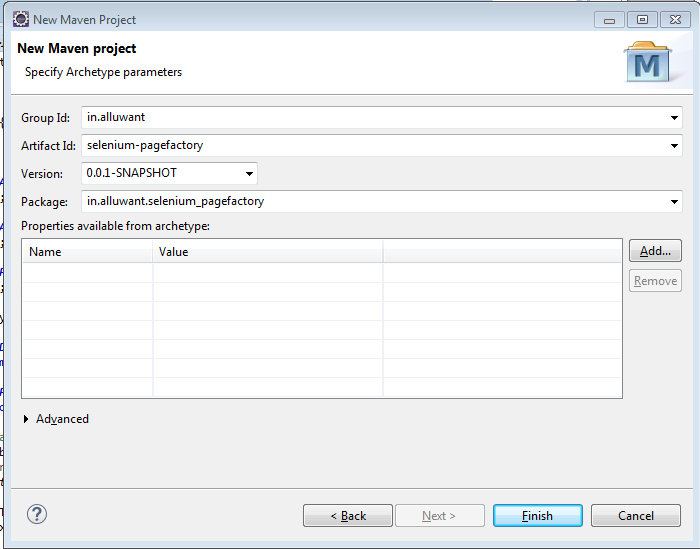
e.      Specify the Group Id & Artifact Id and click on Finish.


f.        Here is the pom.xml


g.       Right click on the pom.xml and go to Run As > Maven test.


h.      Here are the logs.


Thats all guys.

Download the project from : https://github.com/kasthurikranthikumar/EmptyMavenProject