# To install the Python client library:# pip install -U seleniumimport urllib.request
from selenium.webdriver.common.proxy import *
import os
from selenium import webdriver
PROXY = "172.XXX.194.XXX:80:reaper:jlK6xgZasdwdfdf"# Create a copy of desired capabilities object.desired_capabilities = webdriver.DesiredCapabilities.CHROME.copy()
# Change the proxy properties of that copy.desired_capabilities['proxy'] = {
    "httpProxy":PROXY,
    "ftpProxy":PROXY,
    "sslProxy":PROXY,
    "noProxy":None,
    "proxyType":"MANUAL",
    "class":"org.openqa.selenium.Proxy",
    "autodetect":False}

driver=webdriver.Chrome(desired_capabilities=desired_capabilities,executable_path='C:/forSelenium/chromedriver.exe')

driver.get("https://chicago.craigslist.org/chc/hss/6210136955.html")
Wednesday, 12 July 2017
selenium chrome proxy # python

Thursday, 29 June 2017
Run SOAPUI project via gradle command.
1. Create a SOAPUI project and save it as xml file
2. install gradle and set path for the same
3. install eclipse
4. install gradle add on over eclipse ( via eclipse market place)
5. create a gradle project
6. open build.gradle and paste below code
/*
* This build file was generated by the Gradle 'init' task.
*
* This generated file contains a sample Java Library project to get you started.
* For more details take a look at the Java Libraries chapter in the Gradle
* user guide available at https://docs.gradle.org/3.5/userguide/java_library_plugin.html
*/
// Apply the java-library plugin to add support for Java Library
apply plugin: 'java-library'
// In this section you declare where to find the dependencies of your project
repositories {
// Use jcenter for resolving your dependencies.
// You can declare any Maven/Ivy/file repository here.
jcenter()
}
dependencies {
// This dependency is exported to consumers, that is to say found on their compile classpath.
api 'org.apache.commons:commons-math3:3.6.1'
// This dependency is used internally, and not exposed to consumers on their own compile classpath.
implementation 'com.google.guava:guava:21.0'
// Use JUnit test framework
testImplementation 'junit:junit:4.12'
}
public class SoapUITask extends Exec {
String soapUIExecutable = 'C:/Program Files (x86)/SmartBear/SoapUI-5.3.0/bin/testrunner.bat'
String soapUIArgs = ''
public SoapUITask(){
super()
this.setExecutable(soapUIExecutable)
}
public void setSoapUIArgs(String soapUIArgs) {
this.args = "$soapUIArgs".trim().split(" ") as List
}
}
// execute SOAPUI
task executeSOAPUI(type: SoapUITask){
soapUIArgs = '"G:/testsoap-soapui-project.xml"'
}
** Replace couple of path in the above code/
open command window @ build.gradle location
>gradle executeSOAPUI
Thats all.
2. install gradle and set path for the same
3. install eclipse
4. install gradle add on over eclipse ( via eclipse market place)
5. create a gradle project
6. open build.gradle and paste below code
/*
* This build file was generated by the Gradle 'init' task.
*
* This generated file contains a sample Java Library project to get you started.
* For more details take a look at the Java Libraries chapter in the Gradle
* user guide available at https://docs.gradle.org/3.5/userguide/java_library_plugin.html
*/
// Apply the java-library plugin to add support for Java Library
apply plugin: 'java-library'
// In this section you declare where to find the dependencies of your project
repositories {
// Use jcenter for resolving your dependencies.
// You can declare any Maven/Ivy/file repository here.
jcenter()
}
dependencies {
// This dependency is exported to consumers, that is to say found on their compile classpath.
api 'org.apache.commons:commons-math3:3.6.1'
// This dependency is used internally, and not exposed to consumers on their own compile classpath.
implementation 'com.google.guava:guava:21.0'
// Use JUnit test framework
testImplementation 'junit:junit:4.12'
}
public class SoapUITask extends Exec {
String soapUIExecutable = 'C:/Program Files (x86)/SmartBear/SoapUI-5.3.0/bin/testrunner.bat'
String soapUIArgs = ''
public SoapUITask(){
super()
this.setExecutable(soapUIExecutable)
}
public void setSoapUIArgs(String soapUIArgs) {
this.args = "$soapUIArgs".trim().split(" ") as List
}
}
// execute SOAPUI
task executeSOAPUI(type: SoapUITask){
soapUIArgs = '"G:/testsoap-soapui-project.xml"'
}
** Replace couple of path in the above code/
open command window @ build.gradle location
>gradle executeSOAPUI
Thats all.
First selenium programme with python
prerequisites:
1.python software
2.install selenium over python
3.download chrome driver
4.IDE for python code: pycharm
FacebookTest.py
from selenium import webdriver
driver = webdriver.Chrome("C:/forSelenium/chromedriver.exe")
driver.get("http://www.facebook.com")
Installing selenium client libraries over python
To write a simple selenium programme in python, we need selenium to be added over python ( this is entirely different when you compare with java with selenium )
Here you go
1. open command window in python installation location. ( if not found search for pip.exe then you can easily find out the location)
2. pip.exe install -U selenium
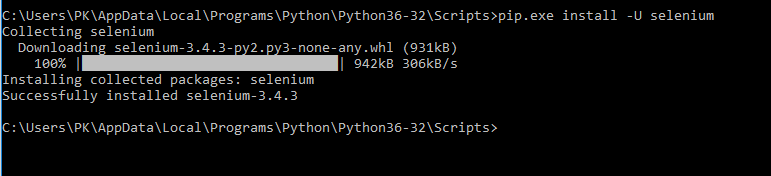
Thats all .
other option:
open command window
C:\Users\Owner\AppData\Local\Programs\Python\Python36-32\Scripts\pip.exe install -U slenium
Sunday, 9 April 2017
add testng file in pom.xml
<properties>
<project.build.sourceEncoding>UTF-8</project.build.sourceEncoding>
<jre.level>1.7</jre.level>
<jdk.level>1.7</jdk.level>
<suiteXmlFile>TestNG.xml</suiteXmlFile>
</properties>
<build>
<!-- Source directory configuration -->
<plugins>
<!-- Compiler plugin configures the java version to be usedfor compiling
the code -->
<plugin>
<groupId>org.apache.maven.plugins</groupId>
<artifactId>maven-compiler-plugin</artifactId>
<version>2.3.2</version>
<configuration>
<source>${jdk.level}</source>
<target>${jdk.level}</target>
</configuration>
</plugin>
<!-- Following plugin executes the testng tests ;
This plug-in is used during the test phase of software build lifecycle to execute tests -->
<plugin>
<groupId>org.apache.maven.plugins</groupId>
<artifactId>maven-surefire-plugin</artifactId>
<version>2.19.1</version>
<configuration>
<!-- Suite testng xml file to consider for test execution -->
<suiteXmlFiles>
<suiteXmlFile>${suiteXmlFile}</suiteXmlFile>
</suiteXmlFiles>
</configuration>
</plugin>
</plugins>
</build>
<project.build.sourceEncoding>UTF-8</project.build.sourceEncoding>
<jre.level>1.7</jre.level>
<jdk.level>1.7</jdk.level>
<suiteXmlFile>TestNG.xml</suiteXmlFile>
</properties>
<build>
<!-- Source directory configuration -->
<plugins>
<!-- Compiler plugin configures the java version to be usedfor compiling
the code -->
<plugin>
<groupId>org.apache.maven.plugins</groupId>
<artifactId>maven-compiler-plugin</artifactId>
<version>2.3.2</version>
<configuration>
<source>${jdk.level}</source>
<target>${jdk.level}</target>
</configuration>
</plugin>
<!-- Following plugin executes the testng tests ;
This plug-in is used during the test phase of software build lifecycle to execute tests -->
<plugin>
<groupId>org.apache.maven.plugins</groupId>
<artifactId>maven-surefire-plugin</artifactId>
<version>2.19.1</version>
<configuration>
<!-- Suite testng xml file to consider for test execution -->
<suiteXmlFiles>
<suiteXmlFile>${suiteXmlFile}</suiteXmlFile>
</suiteXmlFiles>
</configuration>
</plugin>
</plugins>
</build>
Saturday, 1 April 2017
adb devices is showing offline
- Unplug the usb and plug it back again.
- Go to the Settings -> Applications -> Development of your device and uncheck the USB debugging mode and then check it back again.
- Restart the adb on your PC. adb kill-server and then adb start-server
- Restart your device and try again.
Thursday, 16 March 2017
Appium - Caliculator Automation - windows os
This is the first programme,
Setup
Install Android SDK s and Appium ( no need of node.js / npm)
How to install SDK :
download Android studio it will automatically download SDK.
you can find sdk downloaded here C:\Users\PK\AppData\Local\Android\sdk
How to install Appium:
go to official appium site and download the latest appium and just start appium ( nothing required to configure )


Configure like above, when you Launch your appium, it should show console message as above.
Connect your mobile device via USB cable and choose FileTransfer option in USB options.
to check the device properly connected or not.

Path settings:
SET : ANDROID_HOME to C:\Users\PK\AppData\Local\Android\sdk
SET path : %ANDROID_HOME%\tools ;%ANDROID_HOME%\platform-tools ;

Android_home

Add below dependencies
only one jar required, it internally contains selenium-java libs
<!-- https://mvnrepository.com/artifact/io.appium/java-client -->
<dependency>
<groupId>io.appium</groupId>
<artifactId>java-client</artifactId>
<version>5.0.3</version>
</dependency>
import java.net.MalformedURLException;
import java.net.URL;
import java.util.concurrent.TimeUnit;
import org.openqa.selenium.By;
import org.openqa.selenium.WebDriver;
import org.openqa.selenium.remote.CapabilityType;
import org.openqa.selenium.remote.DesiredCapabilities;
import org.openqa.selenium.remote.RemoteWebDriver;
public class NewTest {
public static void main(String[] ards) throws MalformedURLException {
WebDriver driver;
// Created object of DesiredCapabilities class.
DesiredCapabilities capabilities = new DesiredCapabilities();
// Set android deviceName desired capability. Set your device name.
capabilities.setCapability("deviceName", "ZY222XRC5L");
// Set BROWSER_NAME desired capability. It's Android in our case here.
capabilities.setCapability(CapabilityType.BROWSER_NAME, "Android");
// Set android VERSION desired capability. Set your mobile device's OS
// version.
capabilities.setCapability(CapabilityType.VERSION, "6.0.1");
// Set android platformName desired capability. It's Android in our case
// here.
capabilities.setCapability("platformName", "Android");
// Set android appPackage desired capability. It is
// com.android.calculator2 for calculator application.
// Set your application's appPackage if you are using any other app.
capabilities.setCapability("appPackage", "com.android.calculator2");
// Set android appActivity desired capability. It is
// com.android.calculator2.Calculator for calculator application.
// Set your application's appPackage if you are using any other app.
capabilities.setCapability("appActivity",
"com.android.calculator2.Calculator");
// Created object of RemoteWebDriver will all set capabilities.
// Set appium server address and port number in URL string.
// It will launch calculator app in android device.
driver = new RemoteWebDriver(new URL("http://127.0.0.1:4723/wd/hub"),
capabilities);
driver.manage().timeouts().implicitlyWait(15, TimeUnit.SECONDS);
// Click on DELETE/CLR button to clear result text box before running
// test.
driver.findElements(By.xpath("//android.widget.Button")).get(0).click();
// Click on number 2 button.
driver.findElement(By.name("2")).click();
// Click on + button.
driver.findElement(By.name("+")).click();
// Click on number 5 button.
driver.findElement(By.name("5")).click();
// Click on = button.
driver.findElement(By.name("=")).click();
// Get result from result text box.
String result = driver.findElement(
By.className("android.widget.EditText")).getText();
System.out.println("Number sum result is : " + result);
driver.quit();
}
}
we can locate elements using
C:\Users\PK\AppData\Local\Android\sdk\tools\uiautomatorviewer.bat tool

Subscribe to:
Posts (Atom)